Troubleshooting
Fix Calendar Connection Issues
Summary
Resolve connection failures that prevent scheduling and booking workflows from completing.
Steps
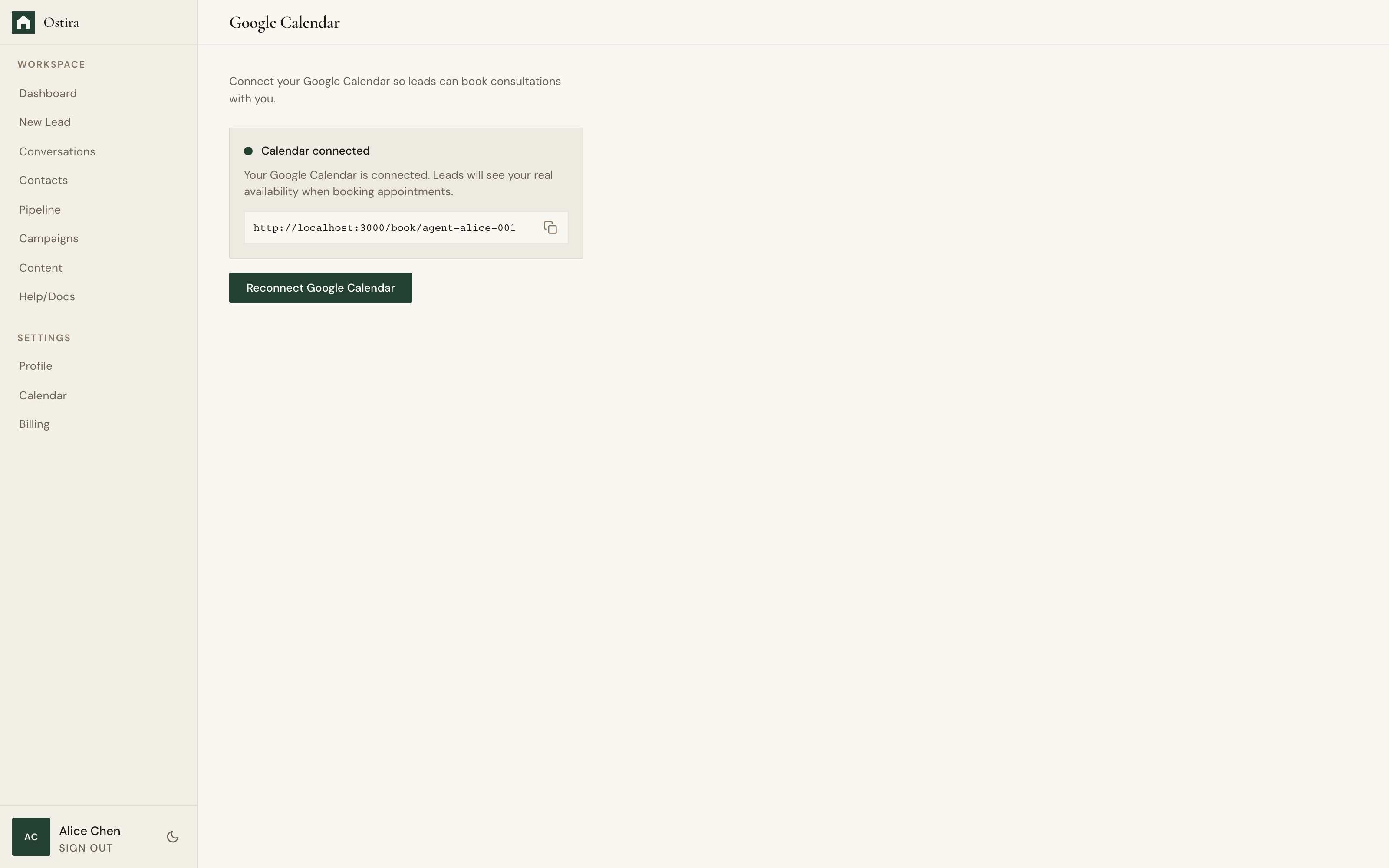
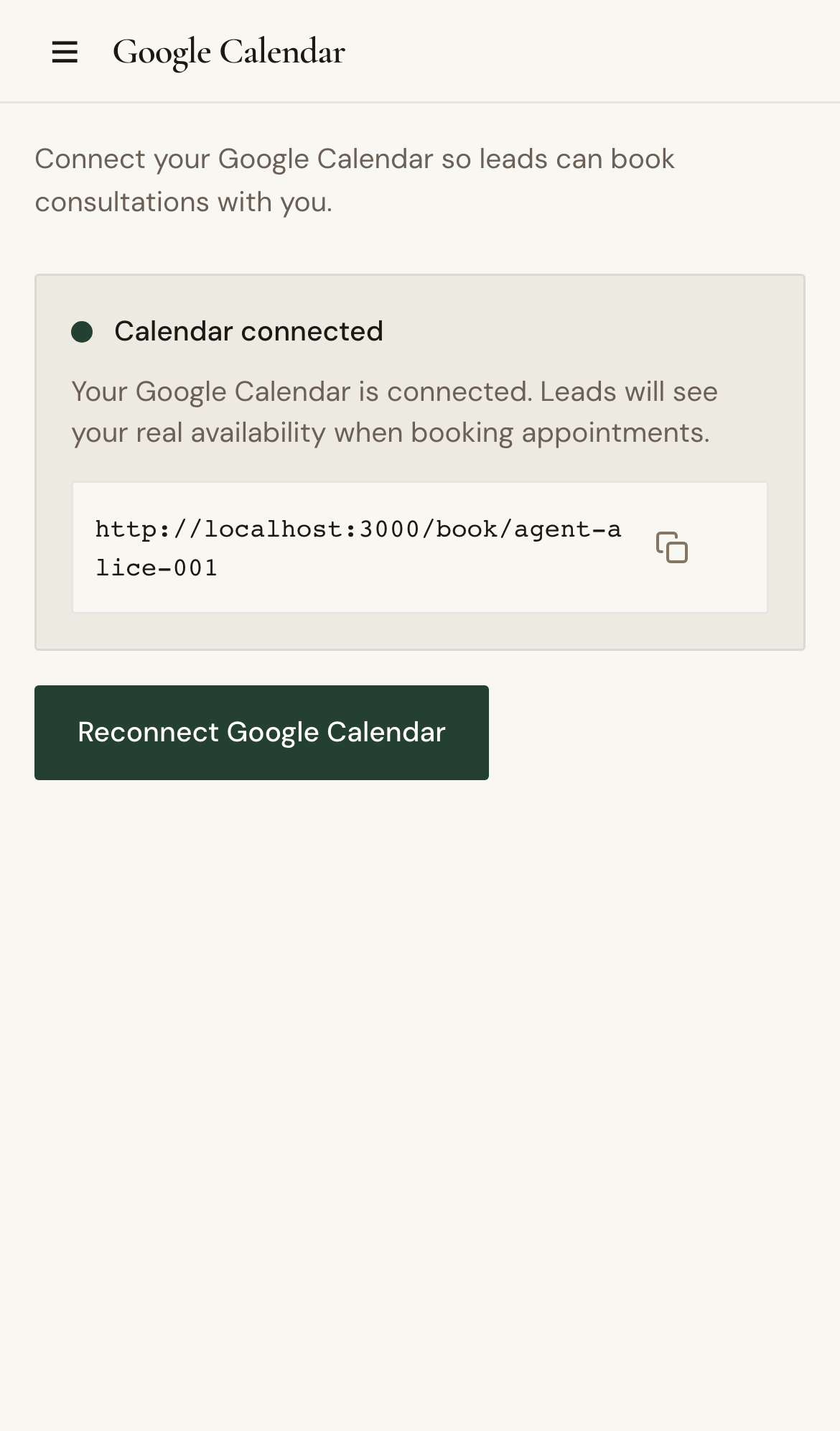
- Open Calendar Connect and verify current status.
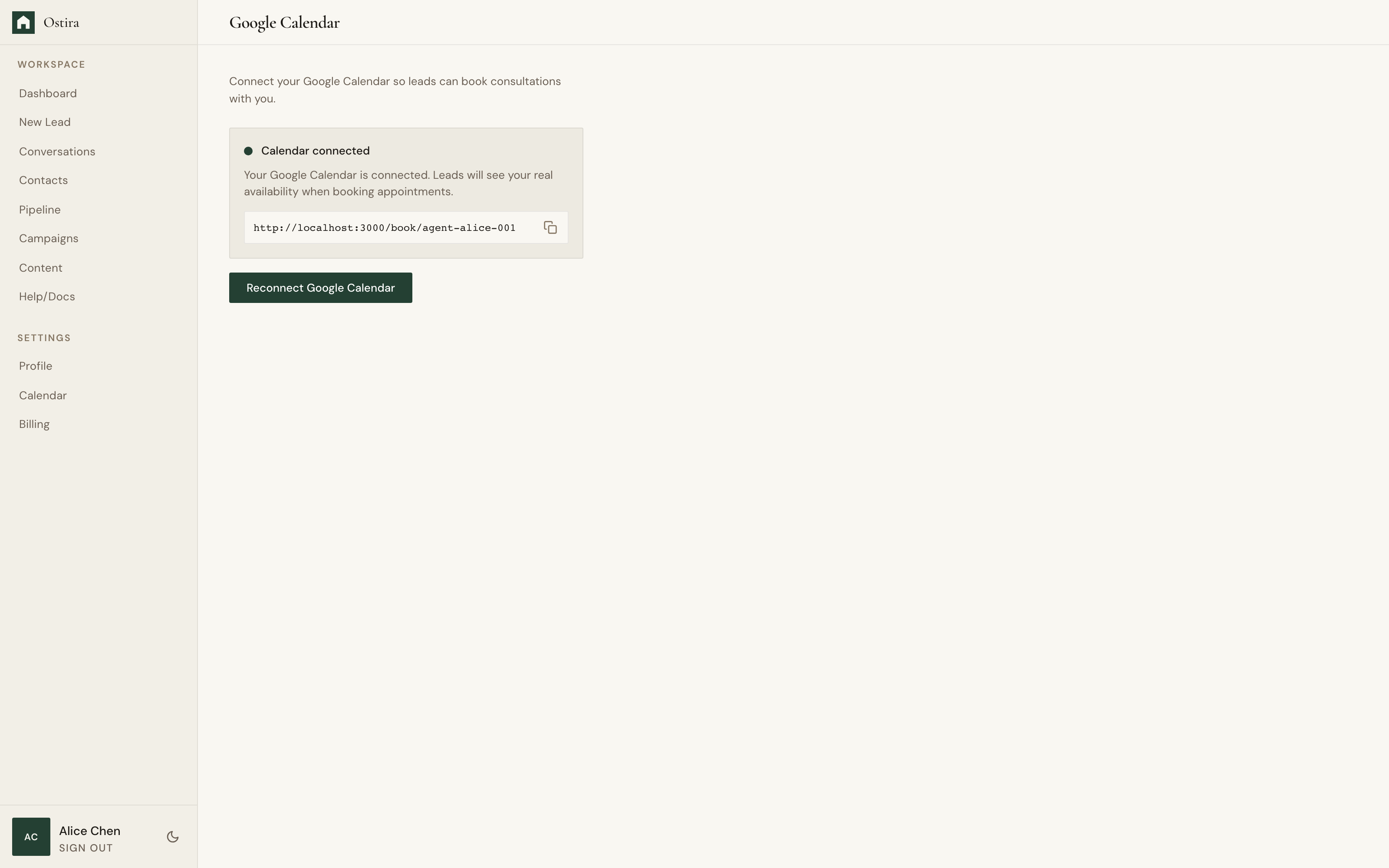
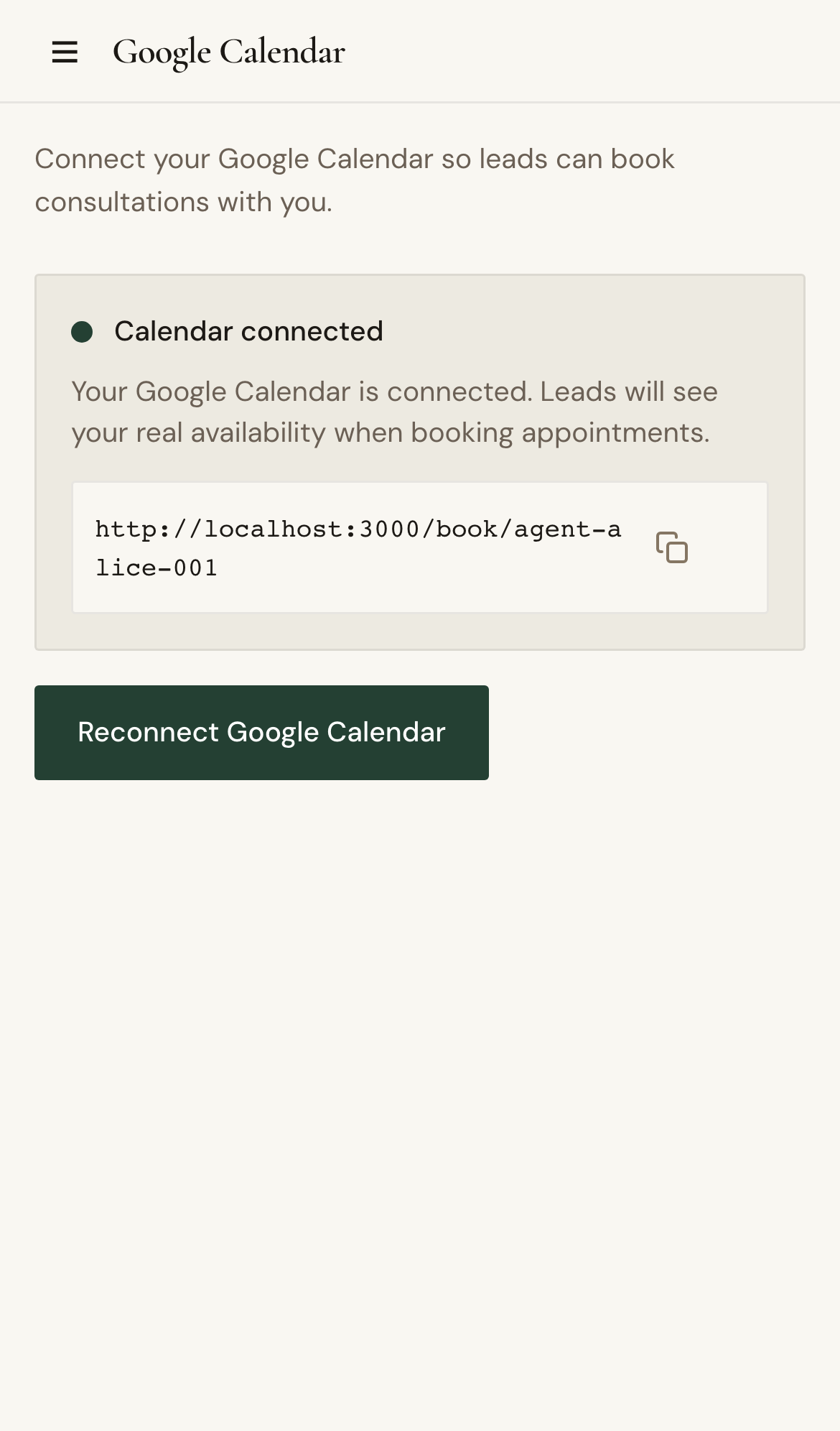
- Reconnect authorization and complete provider consent.
- Recheck availability and booking behavior.
Expected Result
Calendar reconnects and scheduling flows create appointments reliably.
Screenshots
Visual reference aligned to each step with desktop and mobile variants.
Step 1
Step 2
Troubleshooting
- If reconnect fails, allow pop-ups and retry authorization.
- If status remains disconnected, sign out, sign in, and retry.
Still blocked after following these steps?
Escalate Calendar Issue