Troubleshooting
Reset Password and Login Recovery
Summary
Recover access when credentials fail or repeated login attempts trigger temporary lockouts.
Steps
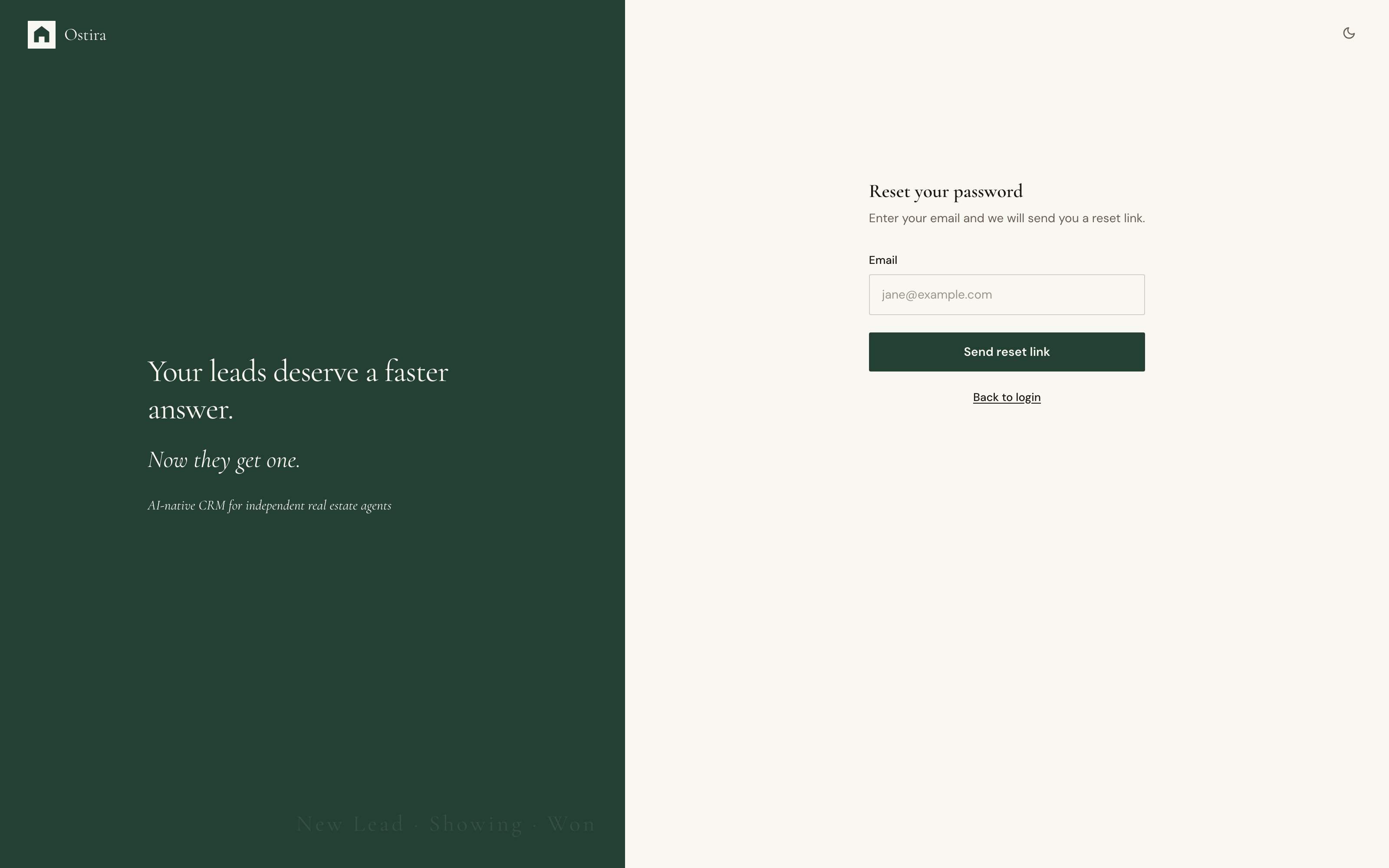
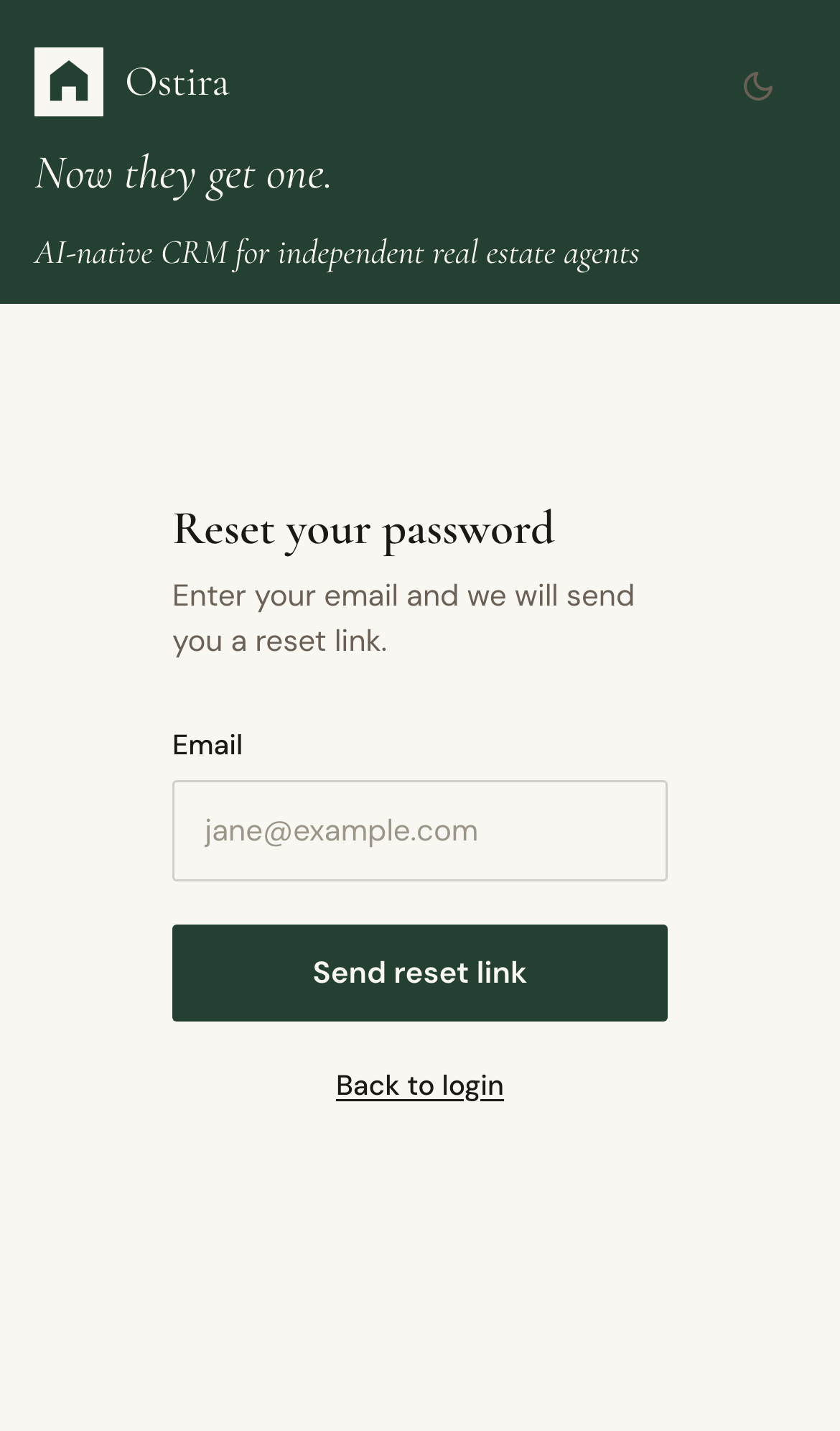
- Open Reset Password and request a new link.
- Use the newest reset email and set a new password.
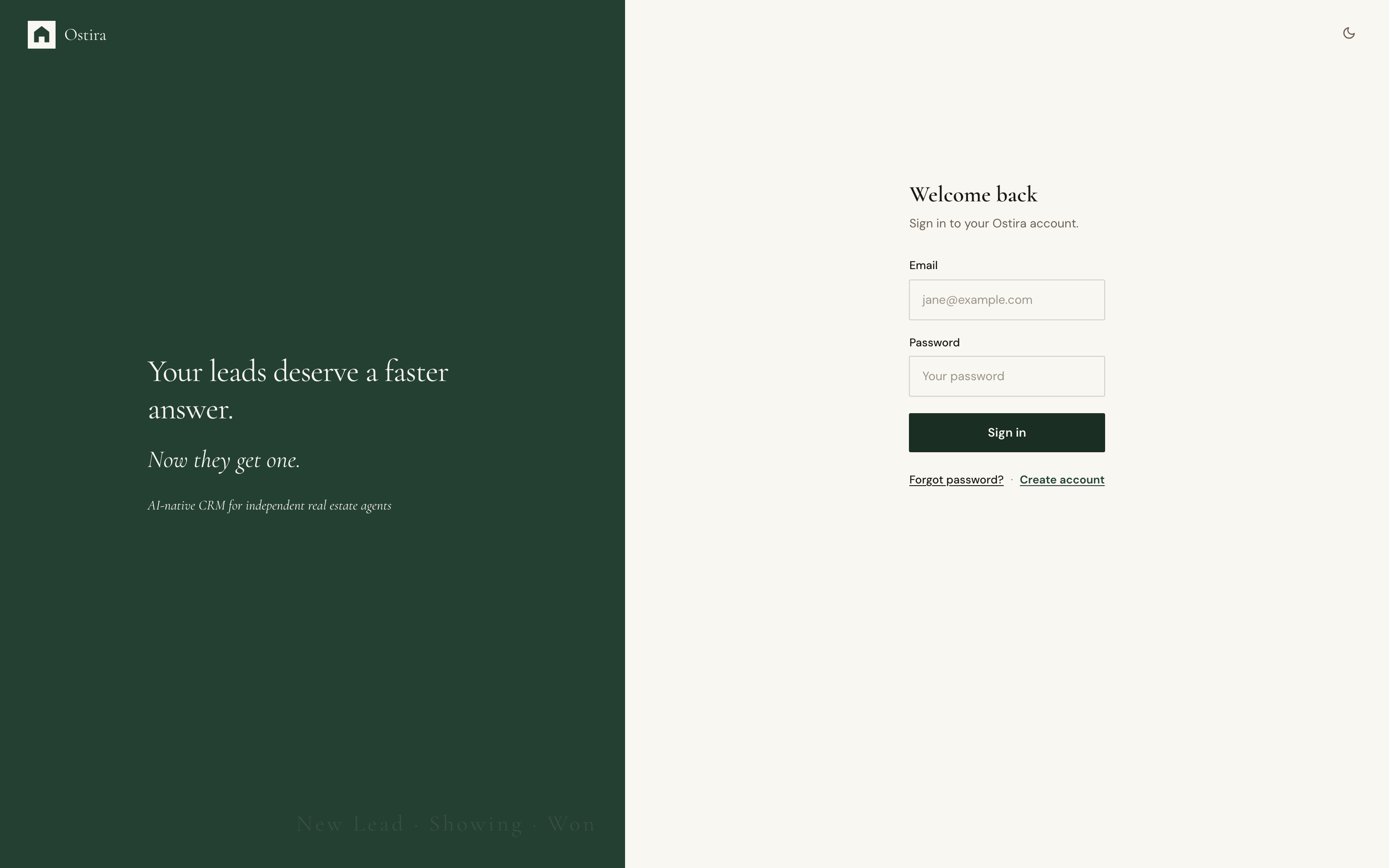
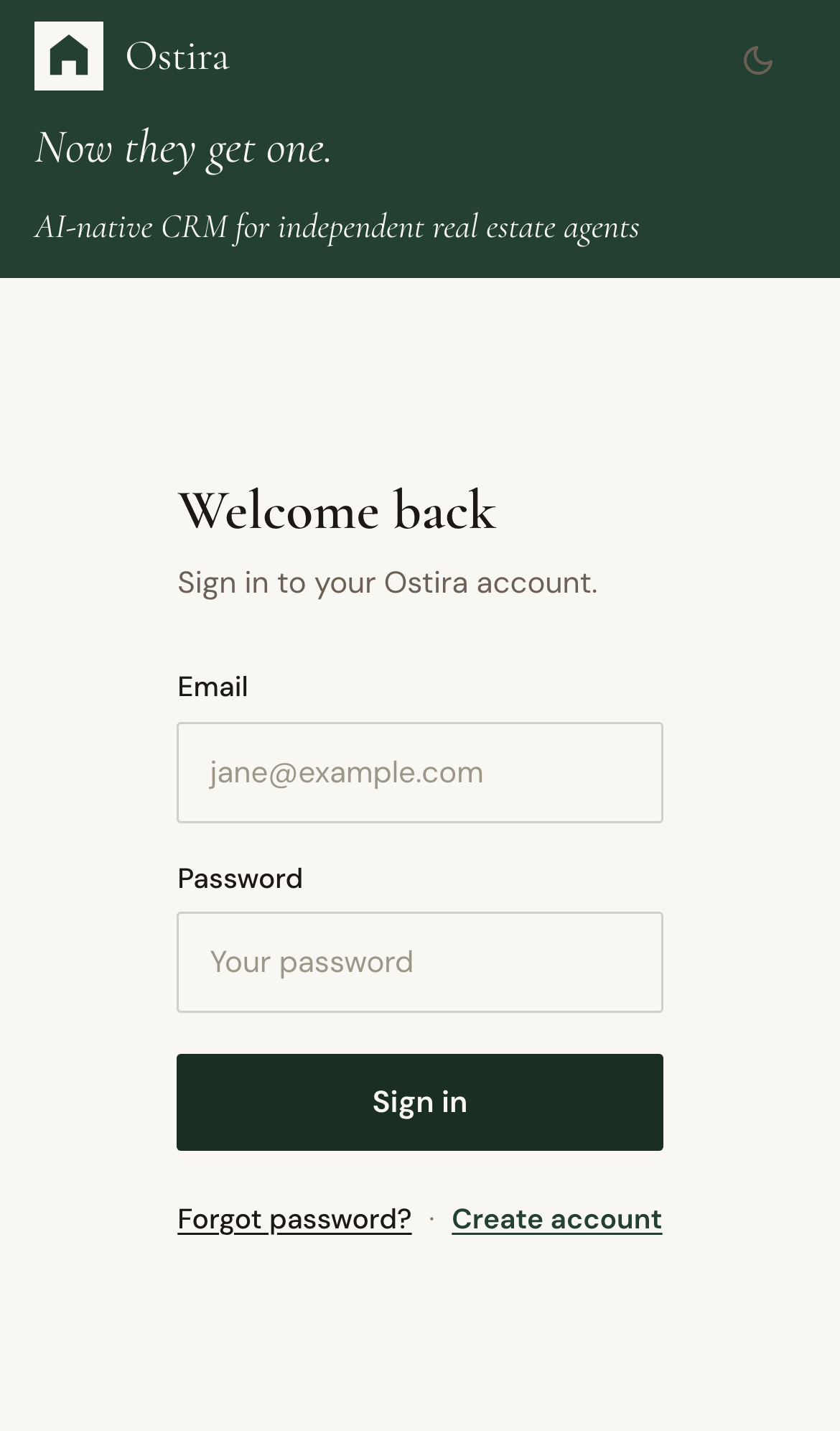
- Return to Login and sign in with updated credentials.
Expected Result
Account access is restored without creating a duplicate account.
Screenshots
Visual reference aligned to each step with desktop and mobile variants.
Step 1
Step 2
Troubleshooting
- If reset email does not arrive, check spam and resend once.
- If link fails, request a fresh link and use the newest email.
Still blocked after following these steps?
Contact Support for Account Recovery