Billing and invoices
Updated
You manage your plan, card and invoices on the Billing page. Payments are handled by Stripe, so Ostira never stores your card number.
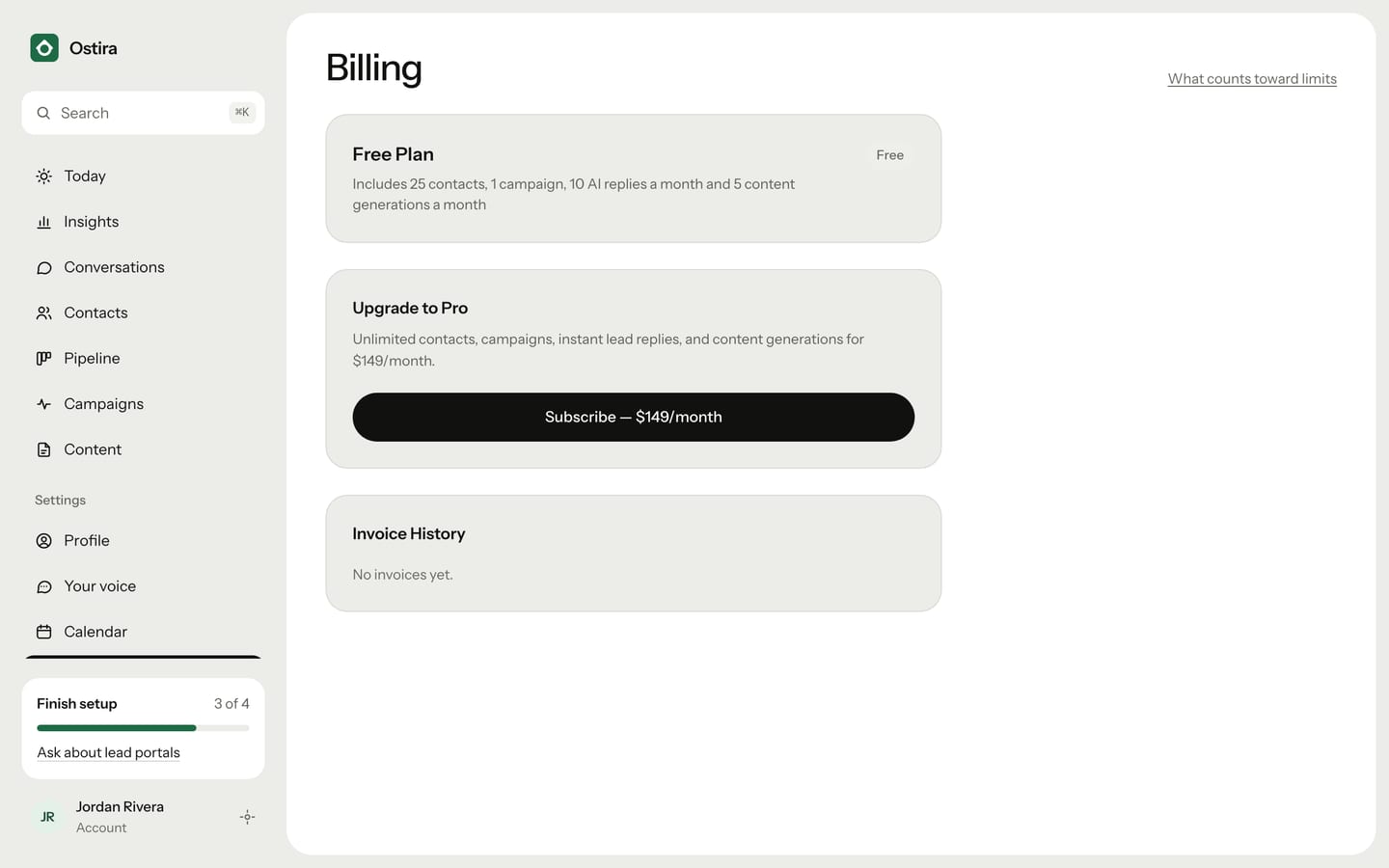
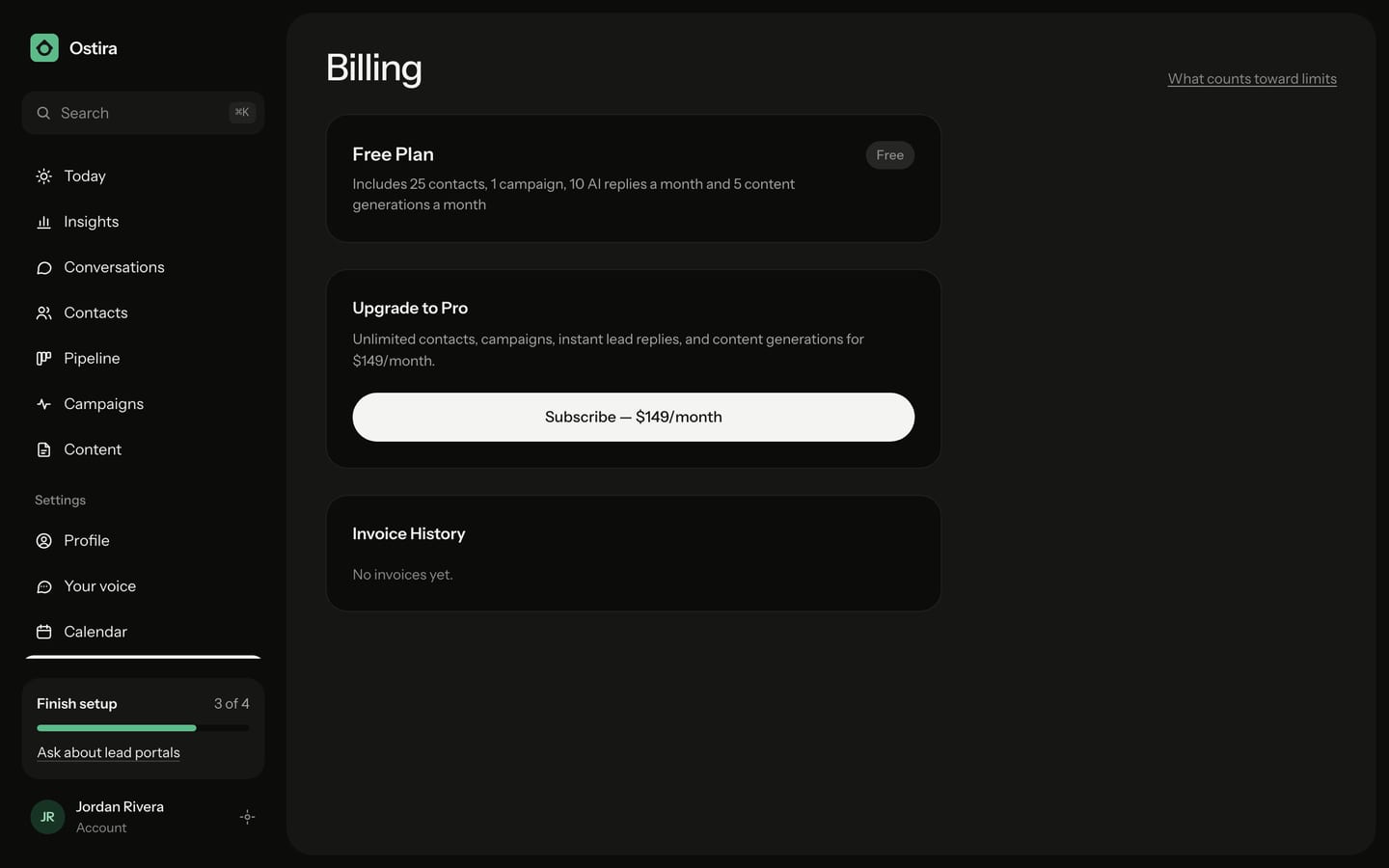
Upgrade to Pro
- In the sidebar, select Billing. On a phone, it's under More.
- Under Upgrade to Pro, select Subscribe — $149/month.
- On Stripe's checkout page, enter your payment details and confirm.
You come back to Billing with "Subscription activated! Welcome to the Pro plan." The plan card now says "Pro Plan" with an "Active" badge, and the free-plan limits no longer apply.
Change your card
- On Billing, under Payment Method, select Update Payment Method.
- Enter your new card details in the form that opens.
- Select Save Payment Method.
You'll see "Payment method updated successfully." The new card is the one charged from now on. Some banks ask you to confirm the card on their own page first; you come back to Billing afterward.
Download an invoice
- On Billing, scroll to Invoice History.
- Find the invoice by its date, amount and status.
- Select Download to open the PDF.
Invoice History shows your 10 most recent invoices. If you haven't paid for Pro yet, it says "No invoices yet."
If something goes wrong
- The plan card says "Payment Failed": your last charge didn't go through. Update your card as above. See Payment failed.
- You want to stop paying: see Cancel or change your plan.
Was this helpful?
Still stuck? Email support@ostira.com.