Search and quick actions
Updated
Search finds your contacts, deals, conversations, campaigns and content from any page. It also has quick actions, so you can add a lead or jump to a page without using the menu.
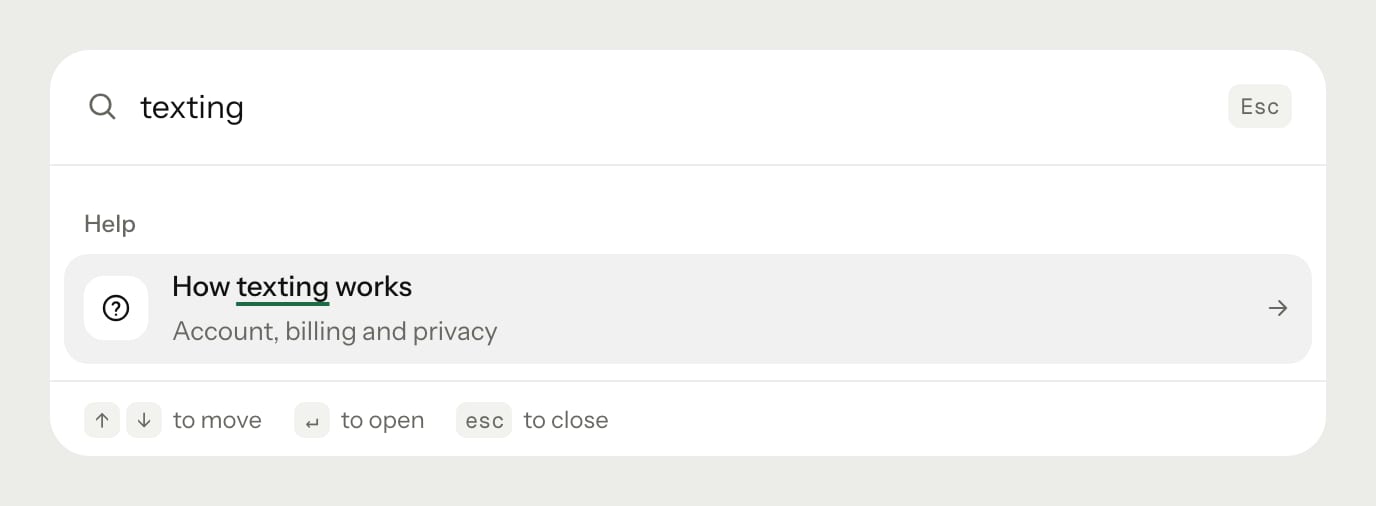
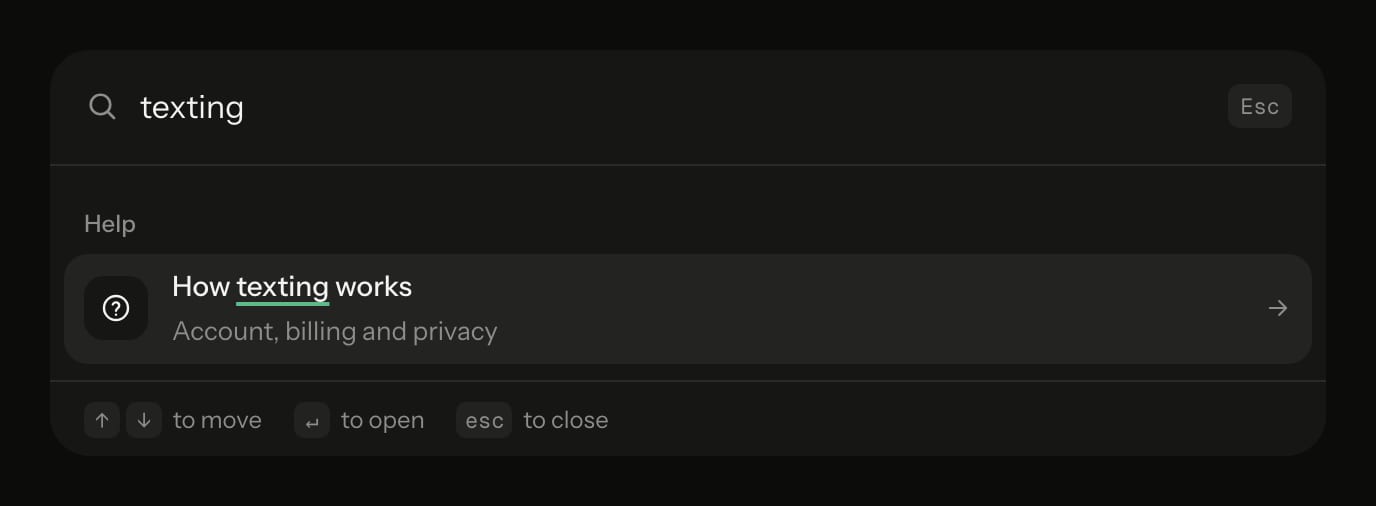
Search for something
- In the sidebar, select Search. Or press ⌘K on a Mac, or Ctrl K on Windows.
- Type at least 2 characters.
- Use the arrow keys to pick a result, then press Enter. Or select the result.
Results come in groups, with up to 5 in each:
| Group | What it matches |
|---|---|
| Contacts | Name, email, phone number or area |
| Deals | The lead's name or area |
| Conversations | The latest message in the conversation |
| Campaigns | Campaign name |
| Content | Title |
If nothing matches, Search says so and suggests trying a name, email, phone number or area.
To close Search, press Esc or press ⌘K (Ctrl K) again. The shortcut doesn't open Search while you're typing in a field.
Use a quick action
When Search opens, it lists quick actions:
| Action | What it does |
|---|---|
| New lead | Opens the form to add a lead |
| Import contacts | Opens the CSV import |
| Go to Today | Opens Today |
| Go to Pipeline | Opens Pipeline |
| Go to Conversations | Opens Conversations |
Typing filters the list. For example, "new" finds New lead, and "inbox" finds Go to Conversations.
Recent searches
When you open a result, Ostira remembers what you typed. Your last 5 searches appear when Search opens. They're saved in this browser only. To remove them, select Clear recent searches.
On your phone
- Select More.
- Select Search.
- Type your search and select a result. To close Search without choosing, select Cancel.
Was this helpful?
Still stuck? Email support@ostira.com.