Manage your content library
Updated
Everything you save from a draft lives in your Content Library. You can find an item, edit it, and mark it final when it's ready to use.
Find content
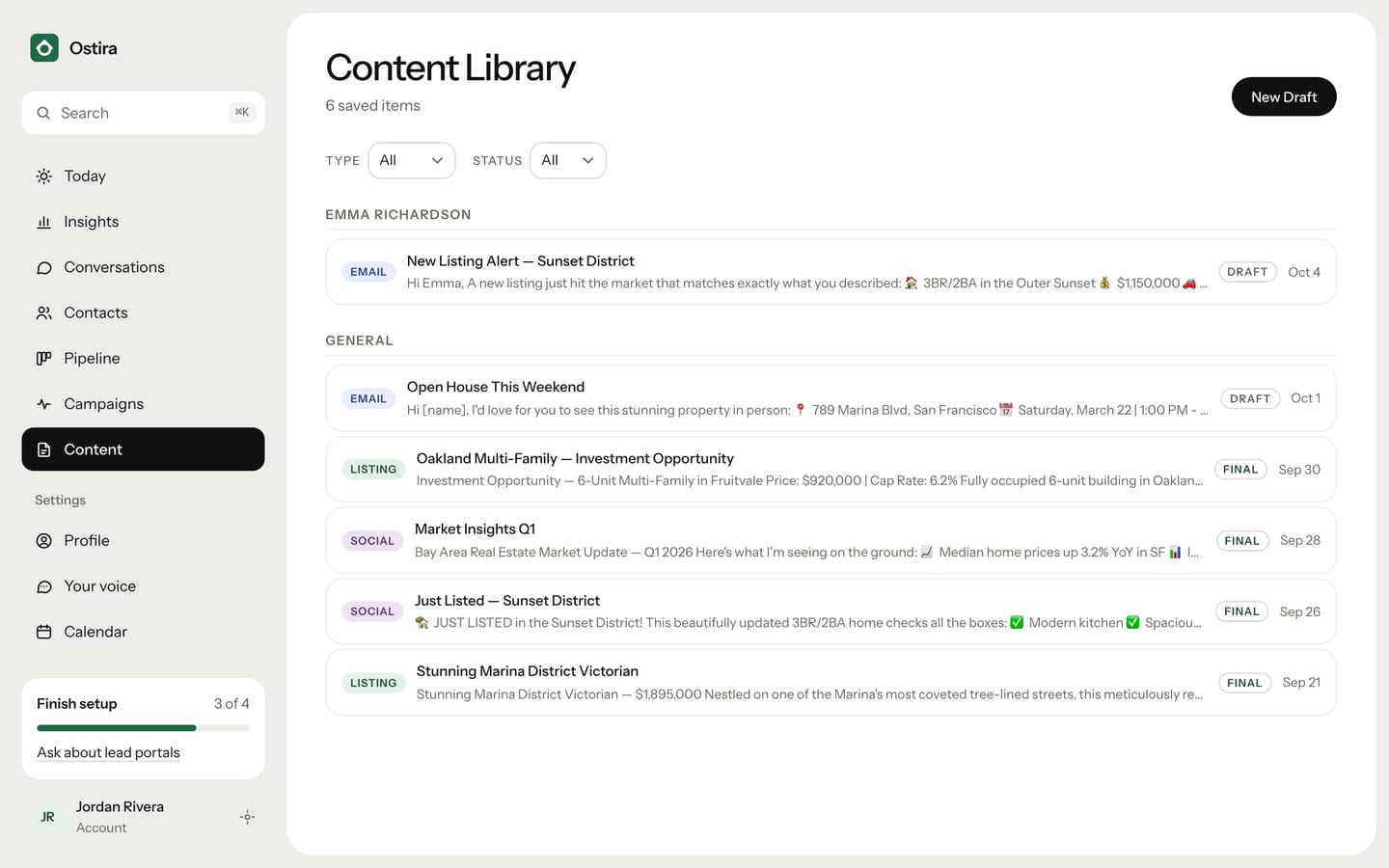
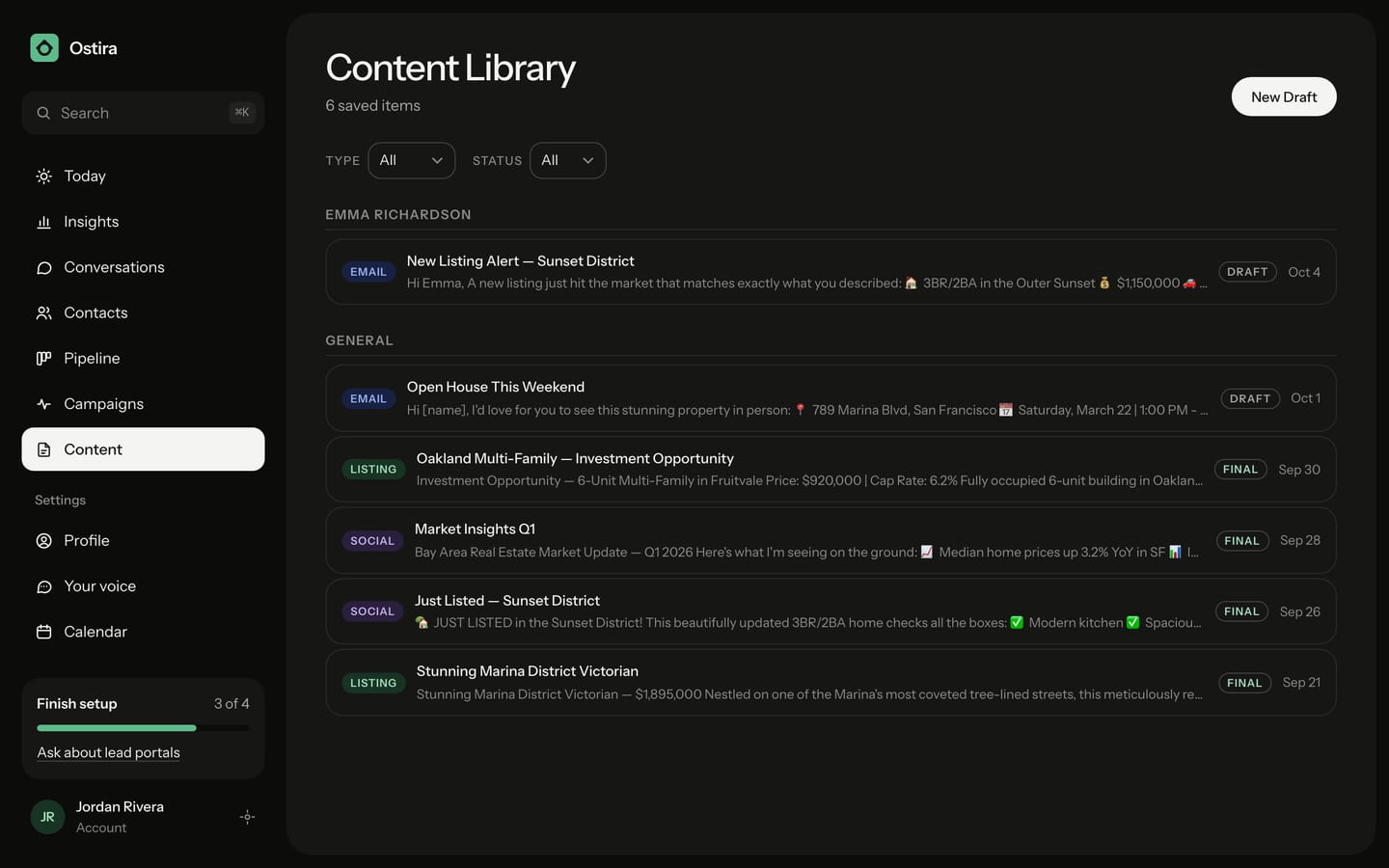
In the sidebar, select Content. Items are grouped by the contact they're linked to, with unlinked items under General. Each row shows the type, a title and preview, the status (Draft or Final) and the date.
To narrow the list, use the Type filter (All, Listing, Social, Email) and the Status filter (All, Draft, Final).
Edit a saved item
- On Content, select the item to open it.
- Edit the text. To start over from the property details, change them and select Regenerate Draft. This counts as a content generation on the free plan.
- Select Save to Library for a draft, or Save changes for a final item.
Mark content as final
- On Content, select the item to open it.
- Select Mark as final. This also saves your latest edits.
- If the Fair Housing check found issues, you'll see "This content has compliance issues." Fix them first, or select Mark as final anyway.
The item now shows Final ✓, and the library lists it as Final. While a check is still running, you can't select Mark as final until it finishes.
Move an item back to draft
Open the item and select Back to draft.
Use saved emails in a campaign
In a campaign step, select Insert from Library to fill the step with a saved email. This replaces the step's current text. See Build a campaign.
What the library doesn't do
You can't delete, archive or publish items from the library. To use a piece somewhere else, open it and select Copy, then paste it where you need it.
For writing new drafts, see Generate listing, social and email content.
Was this helpful?
Still stuck? Email support@ostira.com.