Your Today page
Updated
Today is your home page in Ostira. It shows which leads need you right now, so you can work from the top down while Ostira handles everyone else.
What's on the page
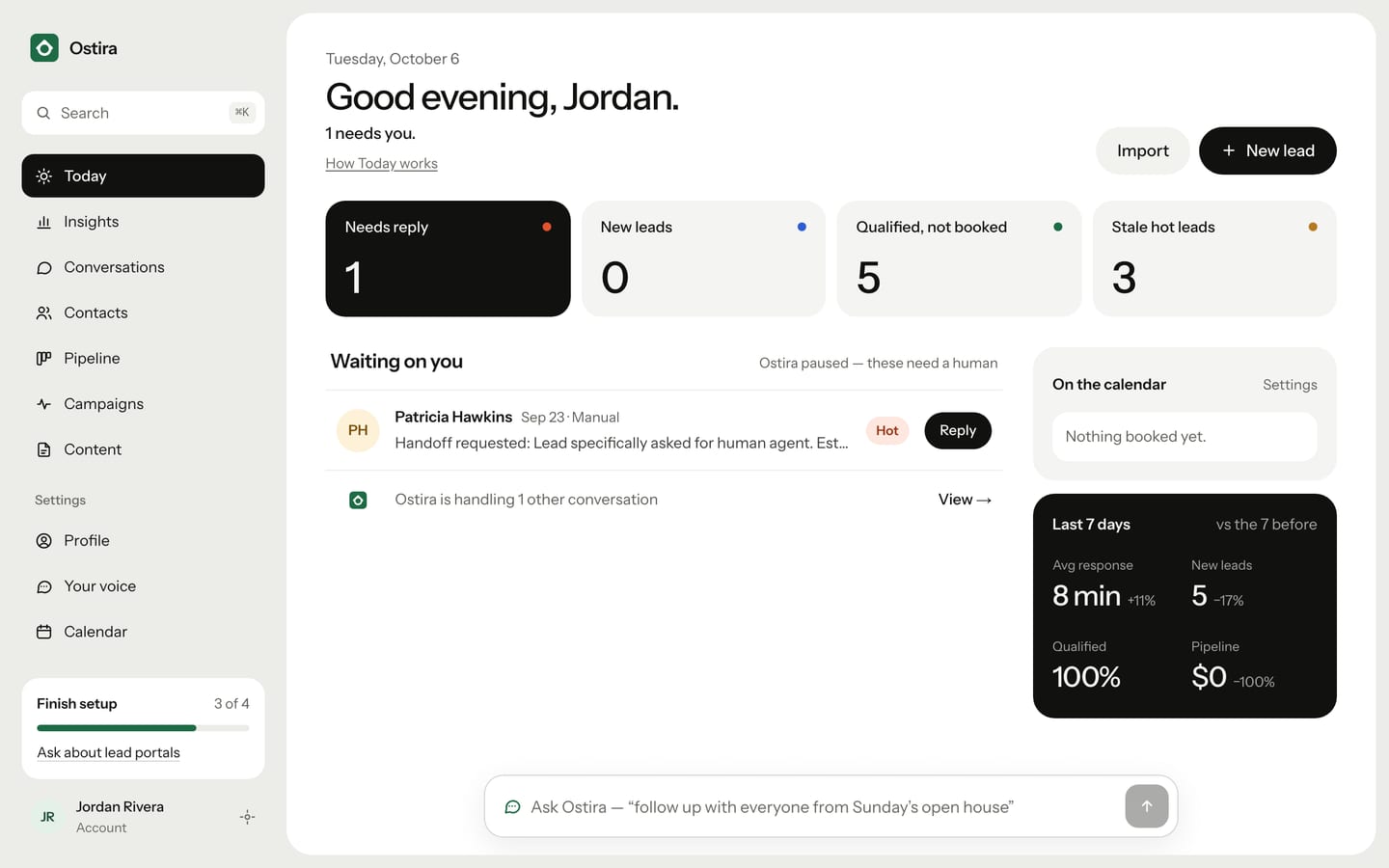
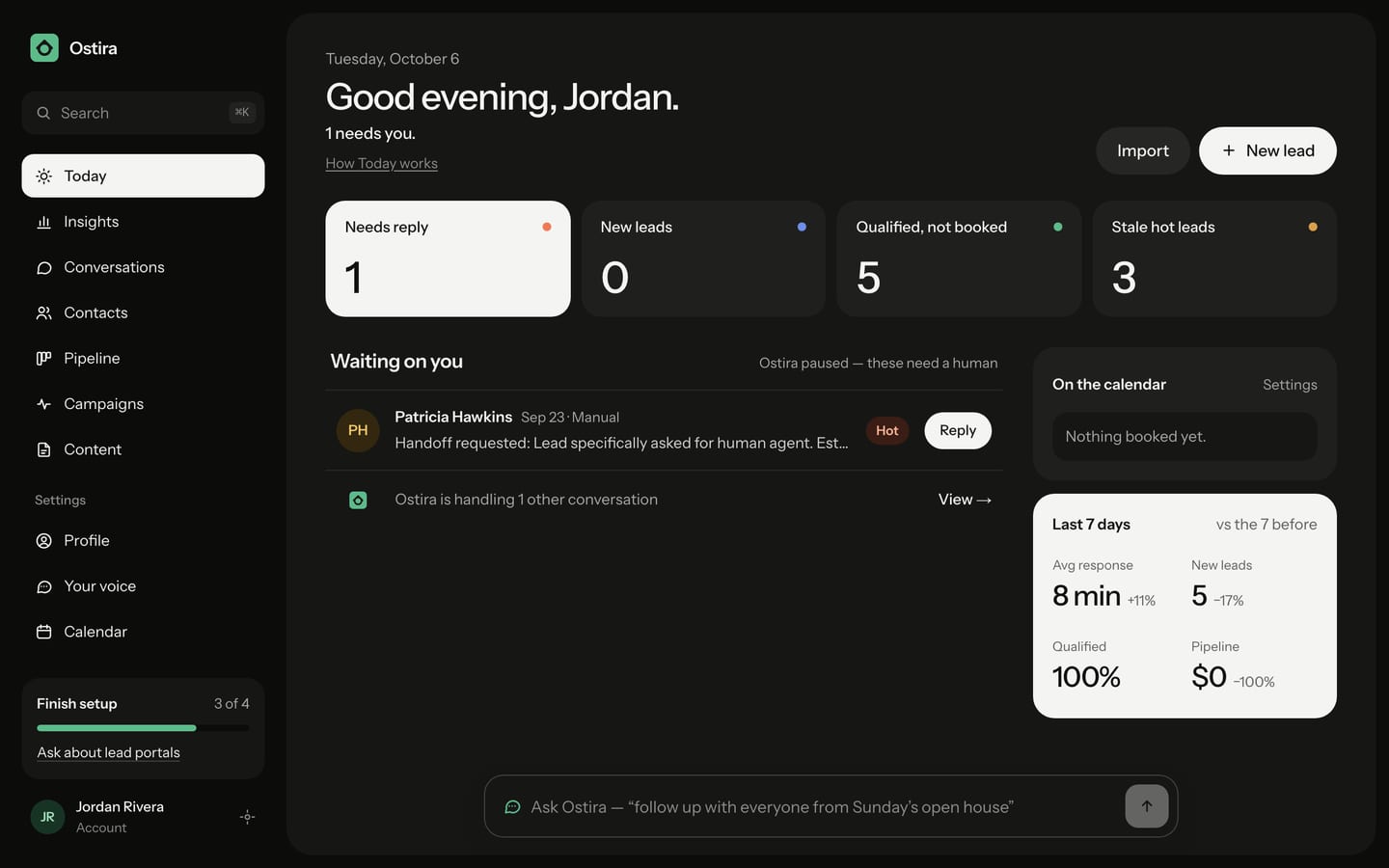
At the top, a greeting and a short summary, for example "Ostira handled 14 conversations since this morning. 4 need you." Next to it are two buttons:
- New lead adds a lead by hand. See Add a lead.
- Import opens the CSV import. See Import contacts from a CSV file.
Below that are four queues. Each card shows how many leads are in it. Select a card to see its leads.
| Queue | Who's in it |
|---|---|
| Needs reply | Ostira paused the conversation and a person needs to answer, or you took it over and haven't replied yet. |
| New leads | Leads that came in during the last 24 hours. |
| Qualified, not booked | Leads with a near-term timeline who are rated Hot or have shared at least two of budget, area and motivation, and have no upcoming appointment. |
| Stale hot leads | Hot leads with no messages for 3 or more days and no upcoming appointment, whether or not they have a deal on your pipeline. |
Each lead sits in only one queue. If a lead fits more than one, it goes in the first that fits, in this order: Needs reply, then Qualified, not booked, then Stale hot leads, then New leads. Inside a queue, the most urgent leads are at the top, then the most recent.
Select a lead to open the conversation. The button on each row says what you'll do there: Reply, Open, Book or Nudge. A "Draft ready" tag means Ostira left a suggested reply waiting in that conversation. See Review Ostira's suggested drafts.
Each queue shows up to 8 leads. If there are more, select View all to see the rest.
Under the queue, "Ostira is handling N other conversations" links to Conversations, where you can follow the leads that don't need you yet.
The side panel
- On the calendar lists your next appointments. Select Settings to open the Calendar page.
- Last 7 days compares this week with the 7 days before: average response time, new leads, the share of leads qualified, and pipeline value. For more numbers, see Read your Insights.
On a computer, the Ask Ostira box sits at the bottom of the page. Ask about your leads or have Ostira draft follow-ups. See Ask Ostira.
When you have no leads yet
A new account shows "No leads yet" instead of the queues. Select Add a lead to add your first one. While setup is open, Connect a lead source takes you back to setup. After that, the button is Import contacts.
Related
Was this helpful?
Still stuck? Email support@ostira.com.