Manage your contacts
Updated
Find a contact, keep their details, tags and notes up to date, and delete the ones you don't need.
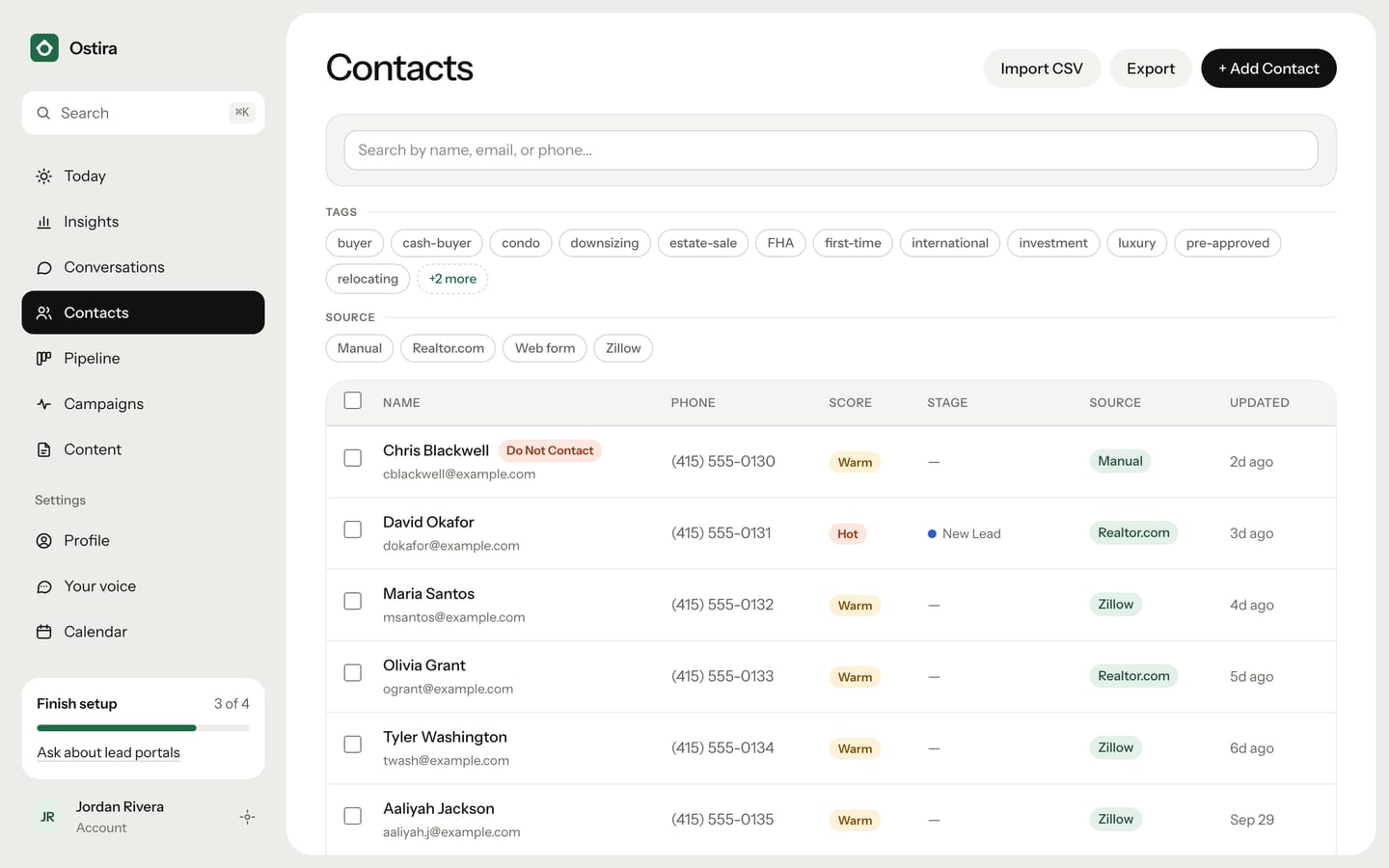
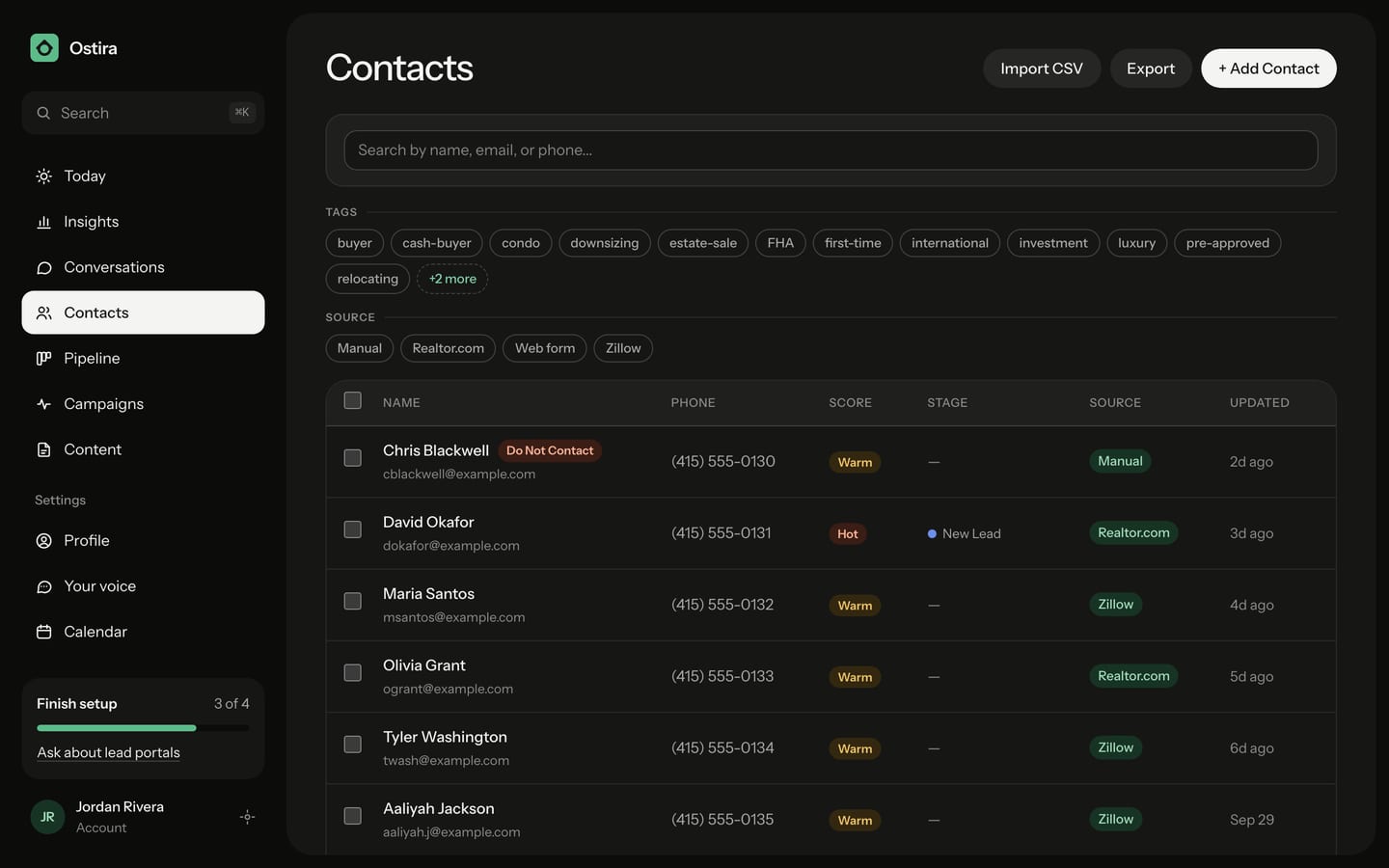
Find a contact
- On Contacts, type a name, email or phone number in the search box.
- Optional: under Tags or Source, select a chip to filter the list. Select it again to turn it off. On a phone, select the filter button next to the search box to see them.
- Select Clear all to remove the search and filters.
You can also press ⌘K (Ctrl K if you're not on a Mac) from any page and type a name.
Update details, tags and notes
- On Contacts, select the contact's row. Their panel opens on the side.
- On the Info tab, change Name, Email or Phone, then select Save changes.
- To add a tag, type it in "Add tag..." and select Add. Select the x on a tag to remove it.
- To add a note, open the Timeline tab, type in "Add a note..." and select Add note.
Tags and notes save right away. Name, email and phone save only when you select Save changes. Two contacts can't share an email or phone number. If you try, you see "Couldn't update contact. Check the email and phone aren't used by another contact."
The Do Not Contact switch on the Info tab stops all texts and emails to this person. See Do Not Contact and unsubscribes.
Add a contact without a conversation
- On Contacts, select + Add Contact.
- Enter Name, plus Email, Phone and Lead Source if you have them.
- Select I have permission to text and email this person.
- Select Save Contact.
Ostira doesn't message contacts you add this way. To have Ostira reach out, use Add a lead.
Delete contacts
Deleting a contact also deletes their conversations, messages, notes, deals, appointments and campaign enrollments. It can't be undone. Export your contacts first if you might need them.
To delete one contact:
- On Contacts, select the contact's row.
- On the Info tab, select Delete contact.
- Select Delete to confirm.
To delete several at once:
- On Contacts, select the checkbox next to each contact.
- Select Delete in the bar that shows how many you selected. There's no second confirmation, so check your selection first.
Was this helpful?
Still stuck? Email support@ostira.com.