Manage your pipeline
Updated
Your pipeline shows your deals, grouped by stage. You can move deals, add a deal by hand, and set up the stages to match how you work.
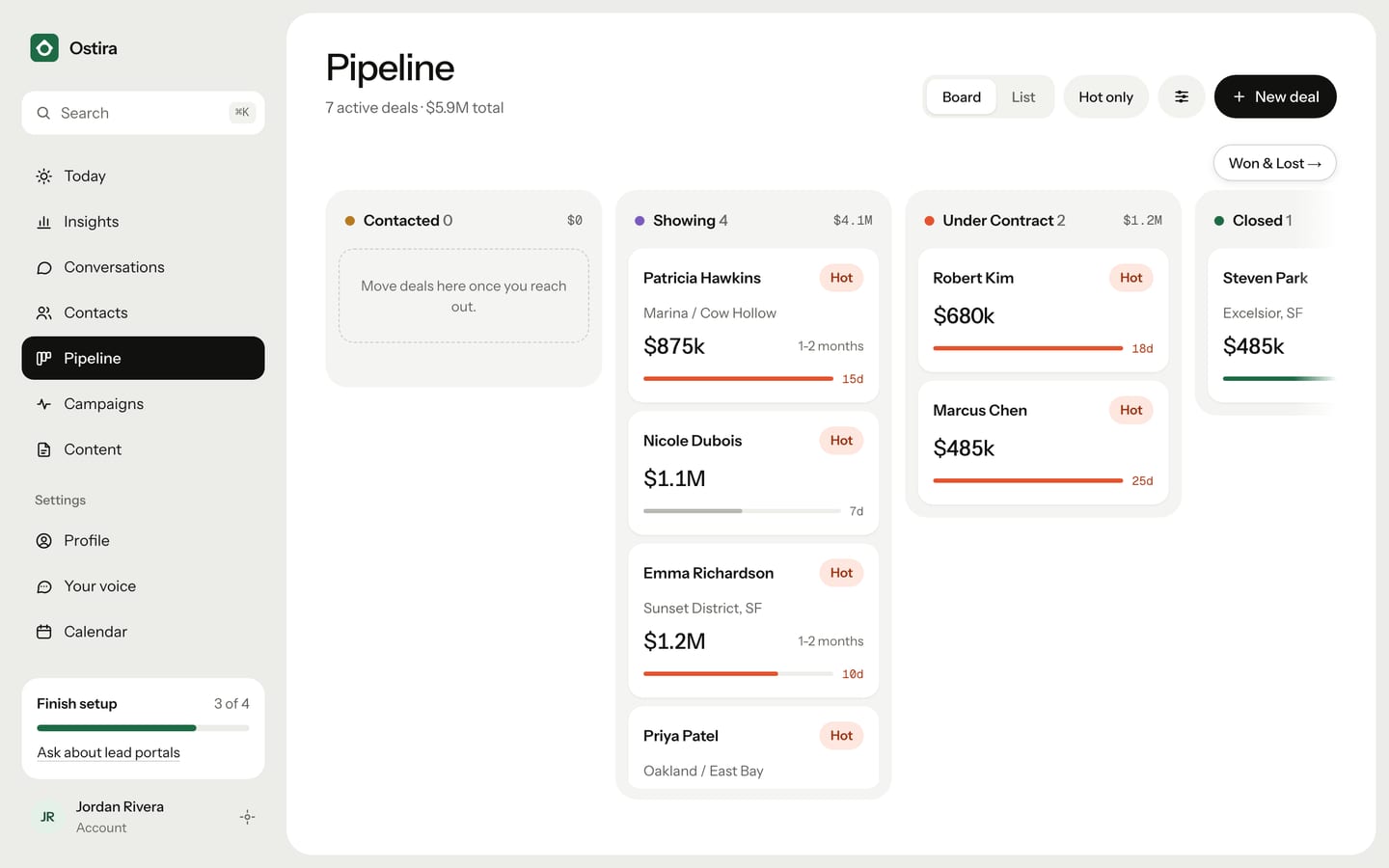
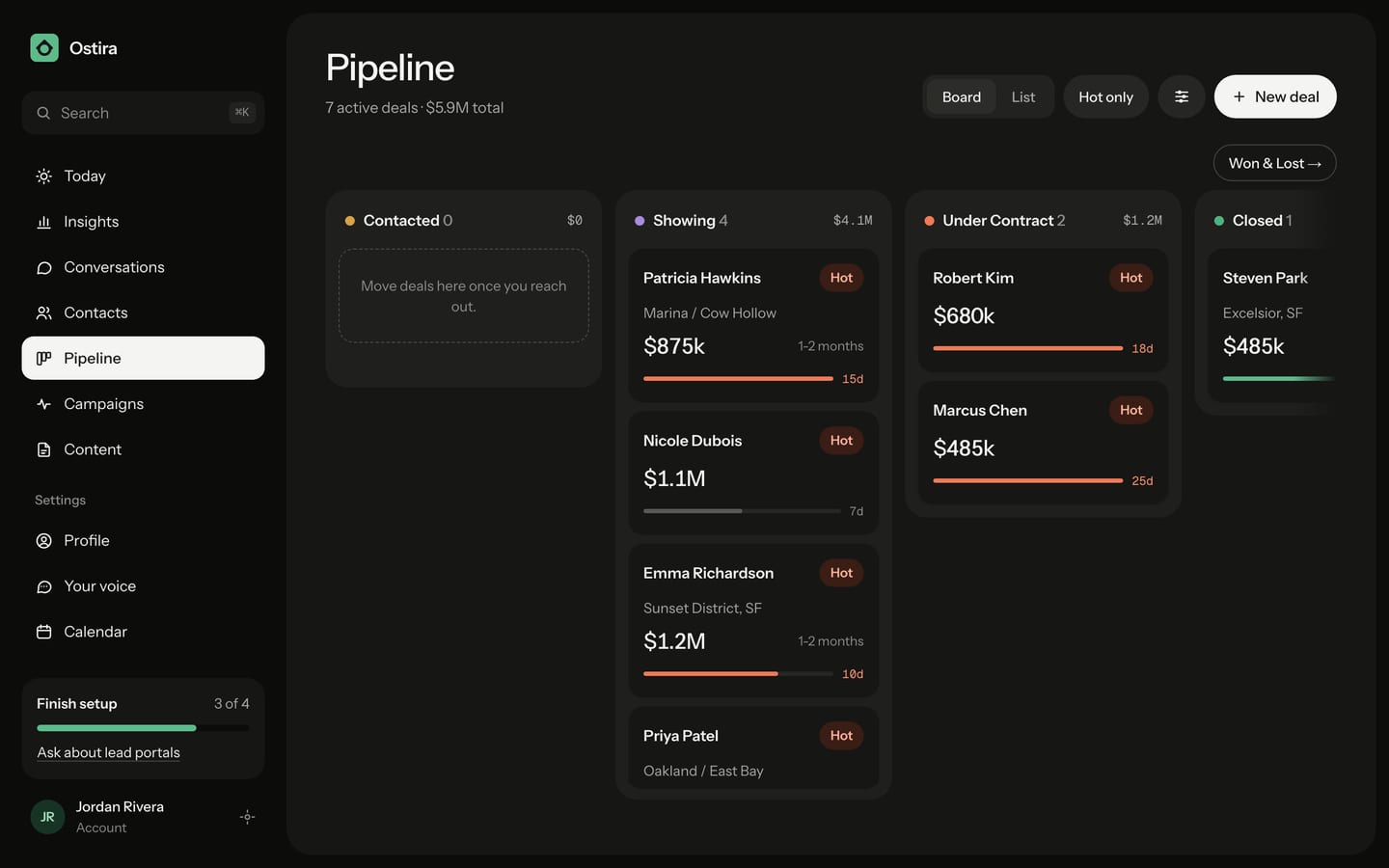
Move a deal to another stage
- On Pipeline, find the deal.
- Move it:
- On a computer, in Board view, drag the card to another column.
- In List view, select Move on the deal's row, then choose a stage.
- On your phone, select Move on the card, then choose a stage.
- If you moved the deal to Won or Lost, add a reason if you like, then select Move deal (on your phone, Confirm).
The reason is optional. It shows on the card so you can spot patterns later.
To open the lead's contact details, select the deal's card or name.
Switch views and filter
- Select Board or List at the top of the page. List view lets you sort by stage, price, days in stage or last activity.
- Select Hot only to show just your Hot leads. The button appears once at least one deal is Hot. Select it again to see every deal.
Add a deal by hand
- On Pipeline, select New deal.
- Search for the contact and select them. Contacts marked Do Not Contact aren't listed.
- Under Stage, choose where the deal starts.
- Optional: enter a value.
- Select Add Deal.
You usually don't need this. When a lead comes in through the New lead form or a lead source, Ostira puts a deal for them in New Lead.
Rename, reorder, add or delete stages
- On Pipeline, select Stage settings (the sliders icon).
- Make your changes:
- To rename a stage, select its name, type the new name and press Enter.
- To reorder, drag a stage by its handle.
- To add a stage, type in New stage name and select Add. It goes after your other stages, before Won and Lost.
- To delete a stage, select its trash icon, then Delete.
- Close the panel.
Won and Lost are marked Fixed. You can't rename, move or delete them.
The stage new leads go into (New Lead, unless you renamed it) is marked Default. You can rename and move it, but not delete it.
You can only delete a stage with no deals in it. If it still has deals, Ostira shows how many instead of a Delete button. Select Show deals to go back to your pipeline, move those deals to another stage, then delete the stage.
What happens next
Ostira can move deals forward for you as conversations progress. Those cards show "Moved by Ostira", and a note at the bottom of the page counts the deals Ostira moved today. See How deals move automatically.
Was this helpful?
Still stuck? Email support@ostira.com.