Add a lead
Updated
Add one lead by hand, and Ostira starts the conversation with them for you.
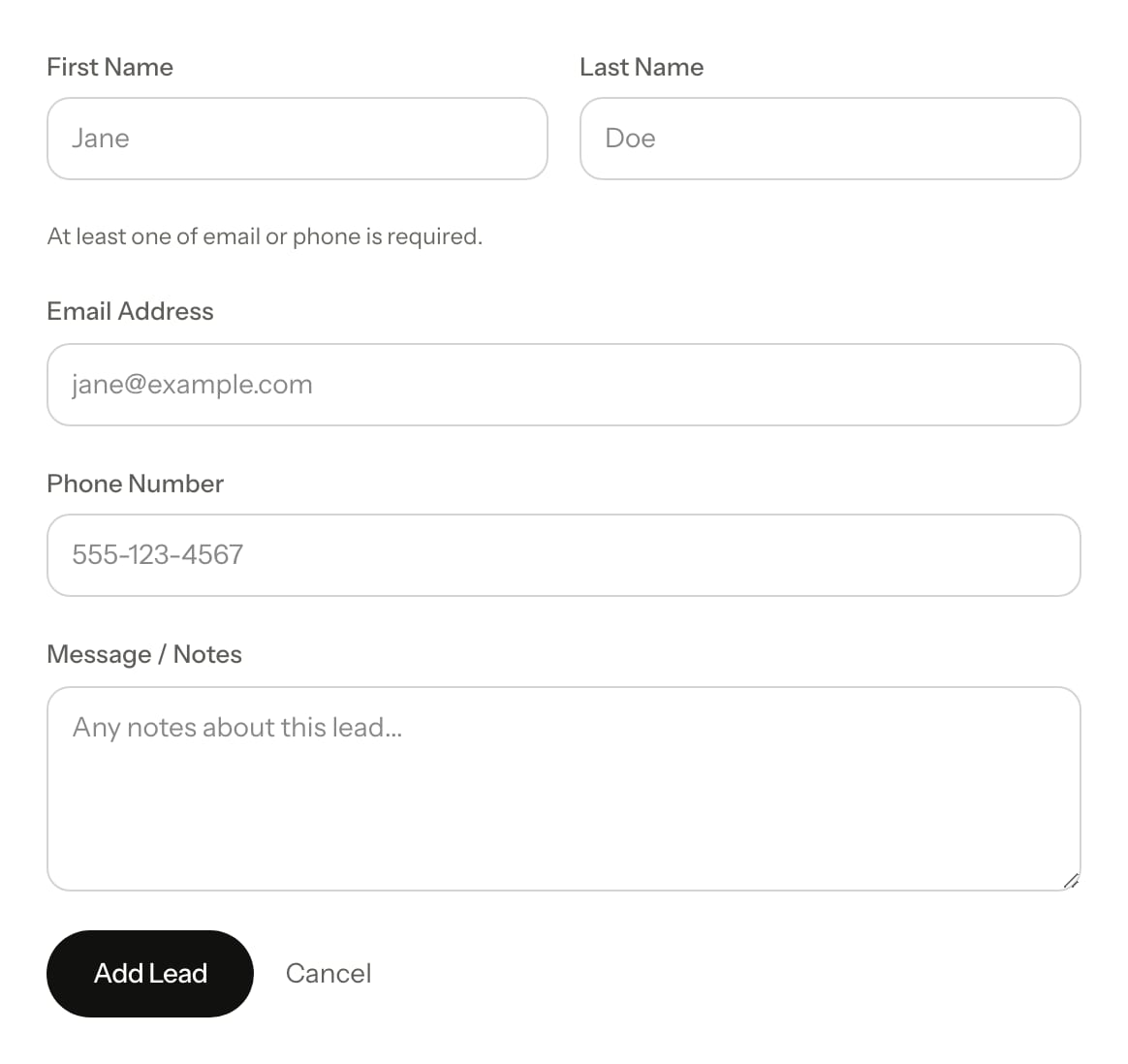
Add the lead
- On Today, select New lead. On a phone, select More, then New lead.
- In First Name and Last Name, enter the lead's name.
- In Email Address or Phone Number, enter at least one way to reach them. Both is better.
- Optional: in Message / Notes, add what you know, such as the home they asked about.
- Select Add Lead.
You can also open the form from anywhere: press ⌘K (Ctrl K if you're not on a Mac) and choose New lead.
What happens next
You see "Lead added!" with two links: View Contacts and Add Another.
- The lead is saved in Contacts with the source Web form. Anything you typed in Message / Notes shows on their timeline.
- Ostira adds a deal for them to the New Lead stage on Pipeline (or whatever you renamed that stage to).
- Ostira sends the first message and starts asking its questions. See How Ostira handles a new lead.
If the email or phone already belongs to one of your contacts, Ostira doesn't create a second contact. It adds this lead to the existing contact and doesn't start a new conversation.
If something goes wrong
| What you see | What to do |
|---|---|
| "Enter an email or a phone number" | Fill in Email Address, Phone Number, or both. |
| "Invalid email address" or "Invalid phone number" | Check for typos. A phone number can use digits, spaces, dashes, dots, brackets and a leading +. |
| "You've reached the free plan limit of 25 contacts. Upgrade to add more leads." | Upgrade, or delete contacts you don't need. See Plans and limits. |
| "Lead added!" but you can't find a new contact | The lead matched an existing contact. See Leads aren't showing up. |
Was this helpful?
Still stuck? Email support@ostira.com.