Connect Google Calendar
Updated
Connect your Google Calendar so leads can book consultations with you, and so booked appointments show up on your calendar.
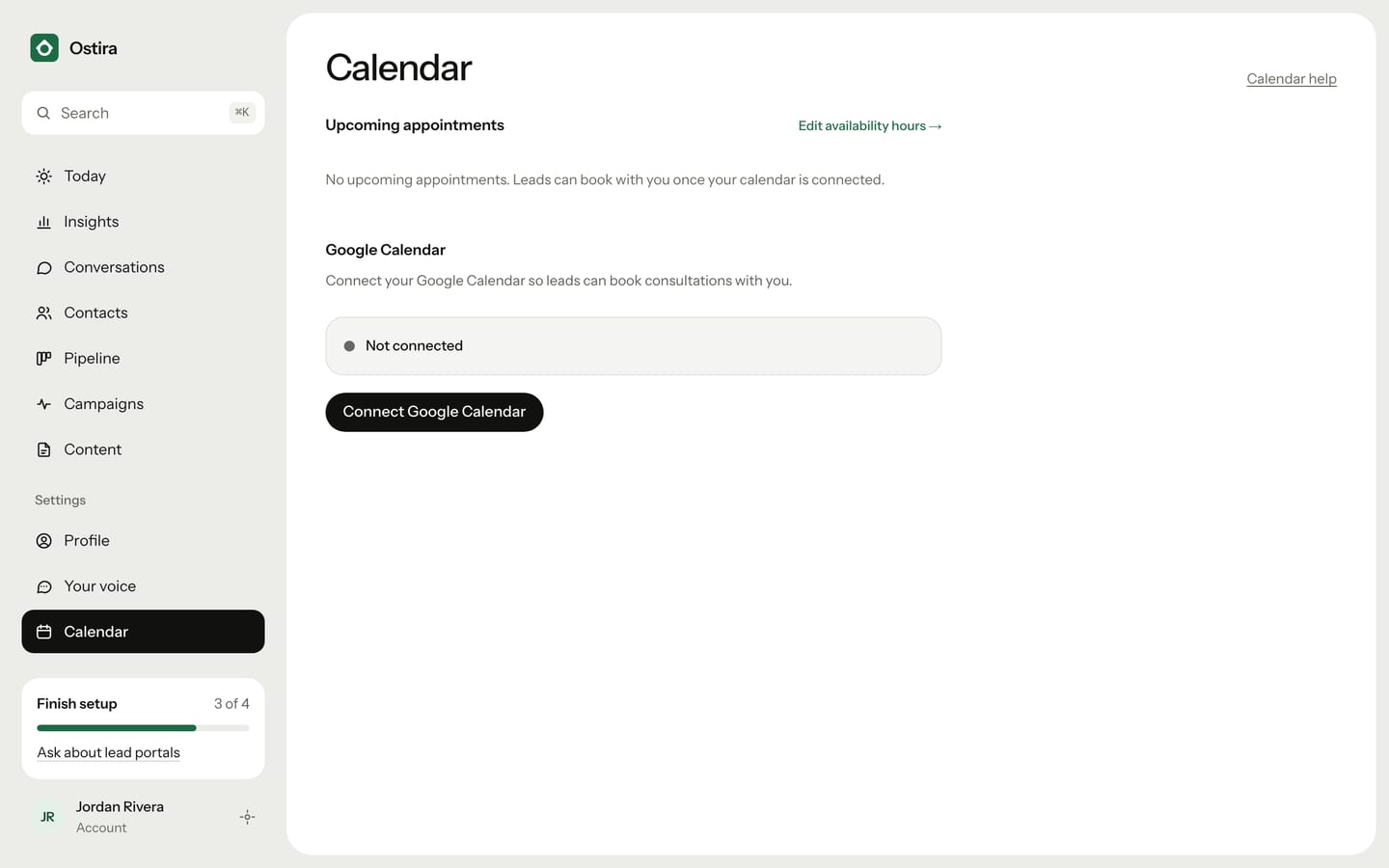
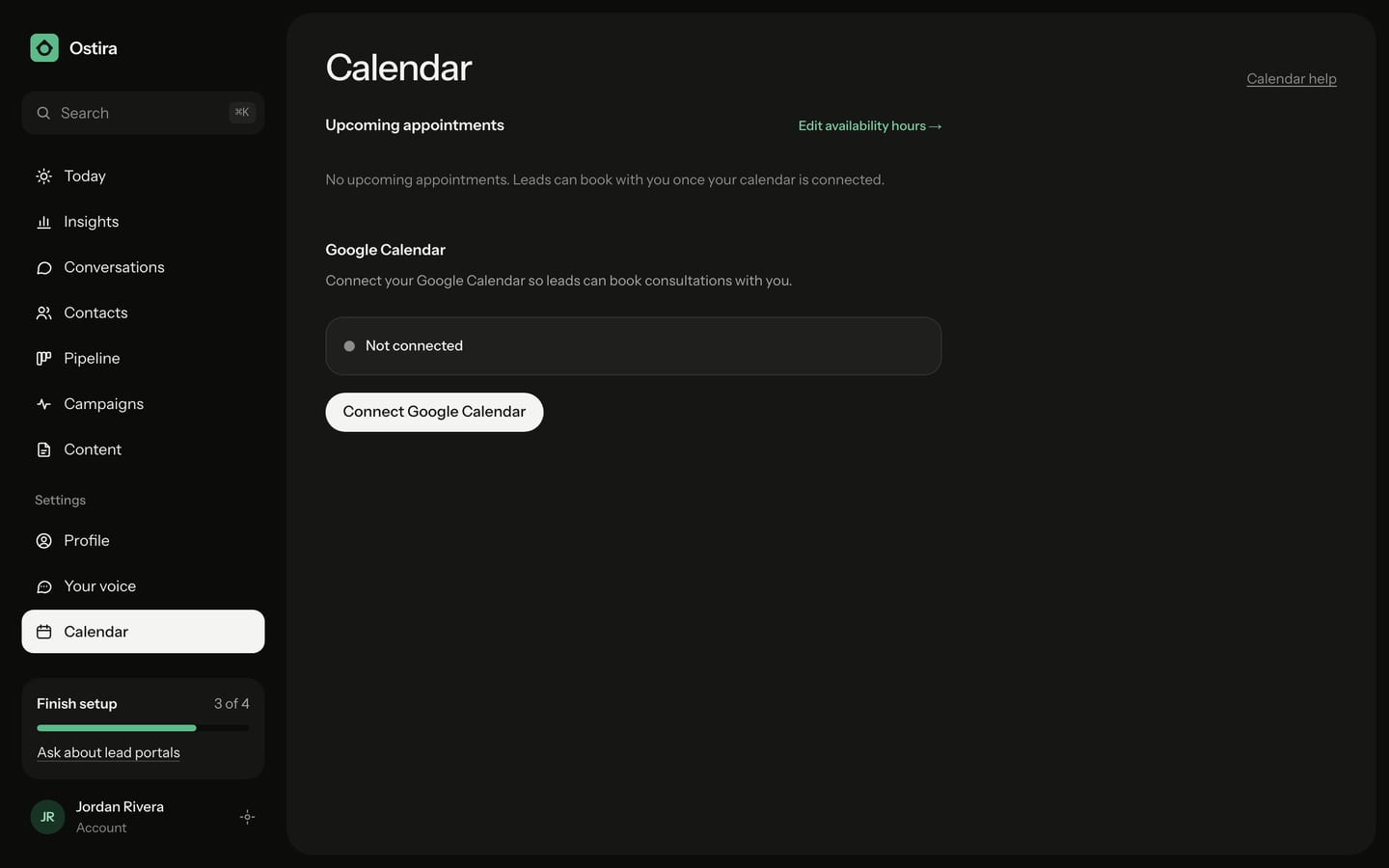
Before you start: you need a Google account with Google Calendar. Ostira works with Google Calendar only.
Connect your calendar
- In the sidebar, under Settings, select Calendar.
- Select Connect Google Calendar. Google's sign-in page opens in the same tab.
- On Google's page, choose your Google account.
- Allow Ostira to access your calendar.
Google sends you back to the Calendar page. You see "Calendar connected!", and the status reads "Calendar connected".
You can also connect during setup, on the Calendar step. See Set up your workspace.
What happens next
- Your booking link appears under the status. Select the copy button next to it to copy it. Ostira also sends each lead their own link when it's time to book. See Booking links and reminders.
- When a lead picks a time, Ostira checks your Google Calendar for busy times and only offers open slots inside your availability hours.
- Booked appointments are added to your Google Calendar. They also appear under "Upcoming appointments" on the Calendar page and under "On the calendar" on Today.
To change the hours leads can book, select Edit availability hours on the Calendar page. See Update your profile and availability.
Reconnect your calendar
If bookings stop working, or Google asks you to sign in again, reconnect:
- In the sidebar, select Calendar.
- Select Reconnect Google Calendar.
- Choose your Google account on Google's page and allow access.
If something goes wrong
- You see "The connection link expired or was not started from this browser. Please try again." Start again and finish on Google's page within 10 minutes, in the same browser where you started.
- You see "Google Calendar access was not granted. Please try again." Start again, and on Google's page allow Ostira to access your calendar.
For more fixes, see Google Calendar won't connect.
Was this helpful?
Still stuck? Email support@ostira.com.