Teach Ostira your voice
Updated
Give Ostira examples of how you write, and it will sound more like you. Your voice shapes Ostira's replies to your leads and the drafts it suggests for you.
What your voice applies to
| Uses your voice | Doesn't use your voice |
|---|---|
| Ostira's replies and follow-ups to leads | Listing, social and email content |
| Drafts Ostira leaves when it pauses a conversation | Campaign steps |
| Follow-up drafts from Ask Ostira |
Add messages you've sent
- In the sidebar, select Your voice.
- Select How I talk to clients.
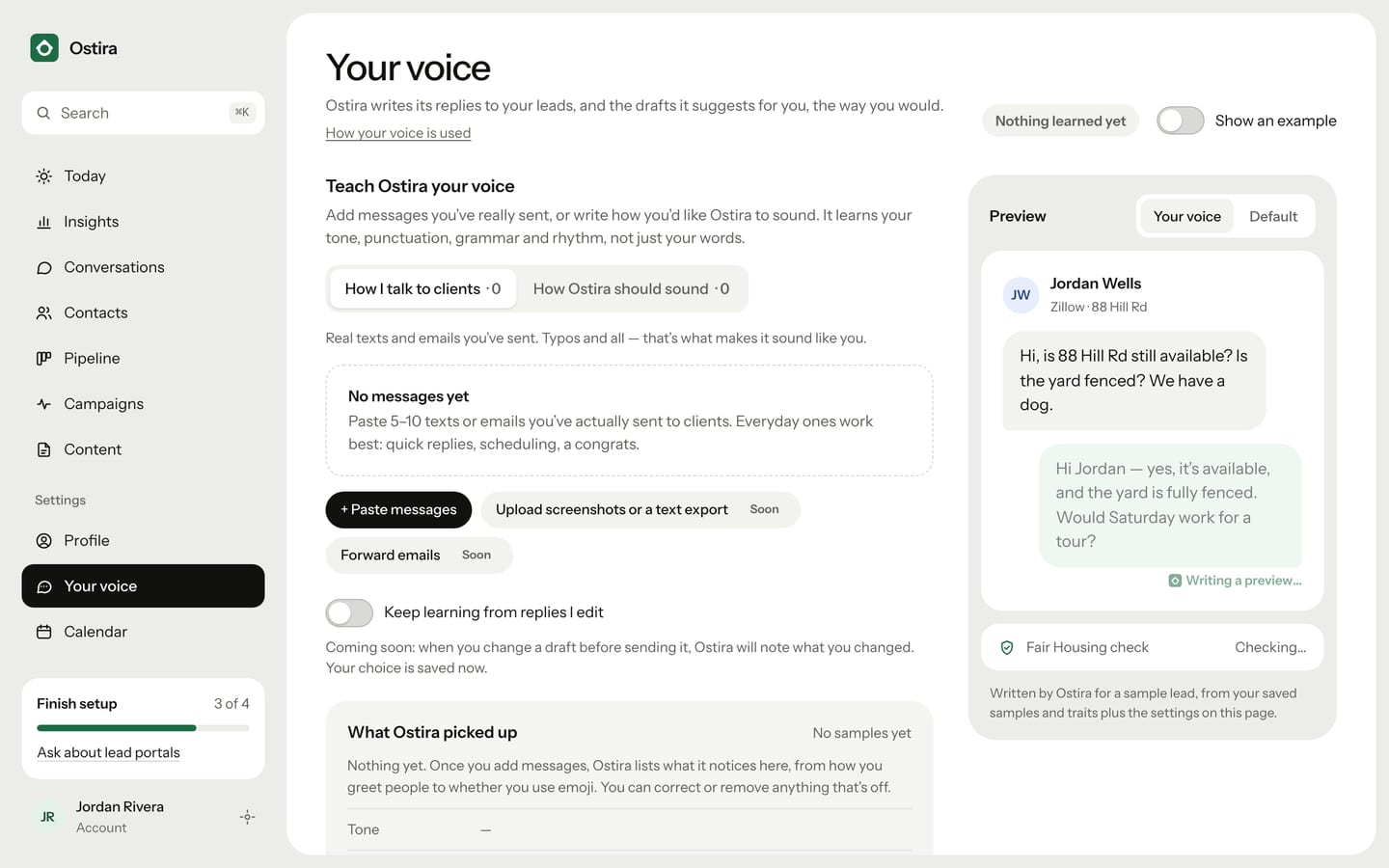
- Select + Paste messages.
- Paste 5 to 10 texts or emails you've sent to clients, with a blank line between each one.
- Select Add messages.
Everyday messages work best: quick replies, scheduling, a congrats. Phone numbers and email addresses are removed before saving. Ostira suggests at least 10 samples for best results.
Show Ostira how it should sound
Use this to steer Ostira away from habits you'd rather it didn't copy.
- Select How Ostira should sound.
- Select + Write an example.
- Write one reply exactly the way you'd want Ostira to send it.
- Select Add example.
Check what Ostira picked up
Under What Ostira picked up, Ostira lists what it noticed in your samples, such as your tone, greeting, punctuation and emoji use. Select a trait to correct it, or select its × to remove it. Samples and trait fixes save as you make them.
Fine-tune and save
- Under Tone, choose Casual, Balanced or Formal.
- Under Length, choose Short or Detailed.
- Under Sign-off, turn the switch on or off, and change the text if you like.
- Under Phrases you use, type a phrase and select Add.
- Under Never say, type a word or phrase Ostira should never use and select Add.
- Under How Ostira introduces itself, choose how Ostira names itself to leads.
- Select Save voice.
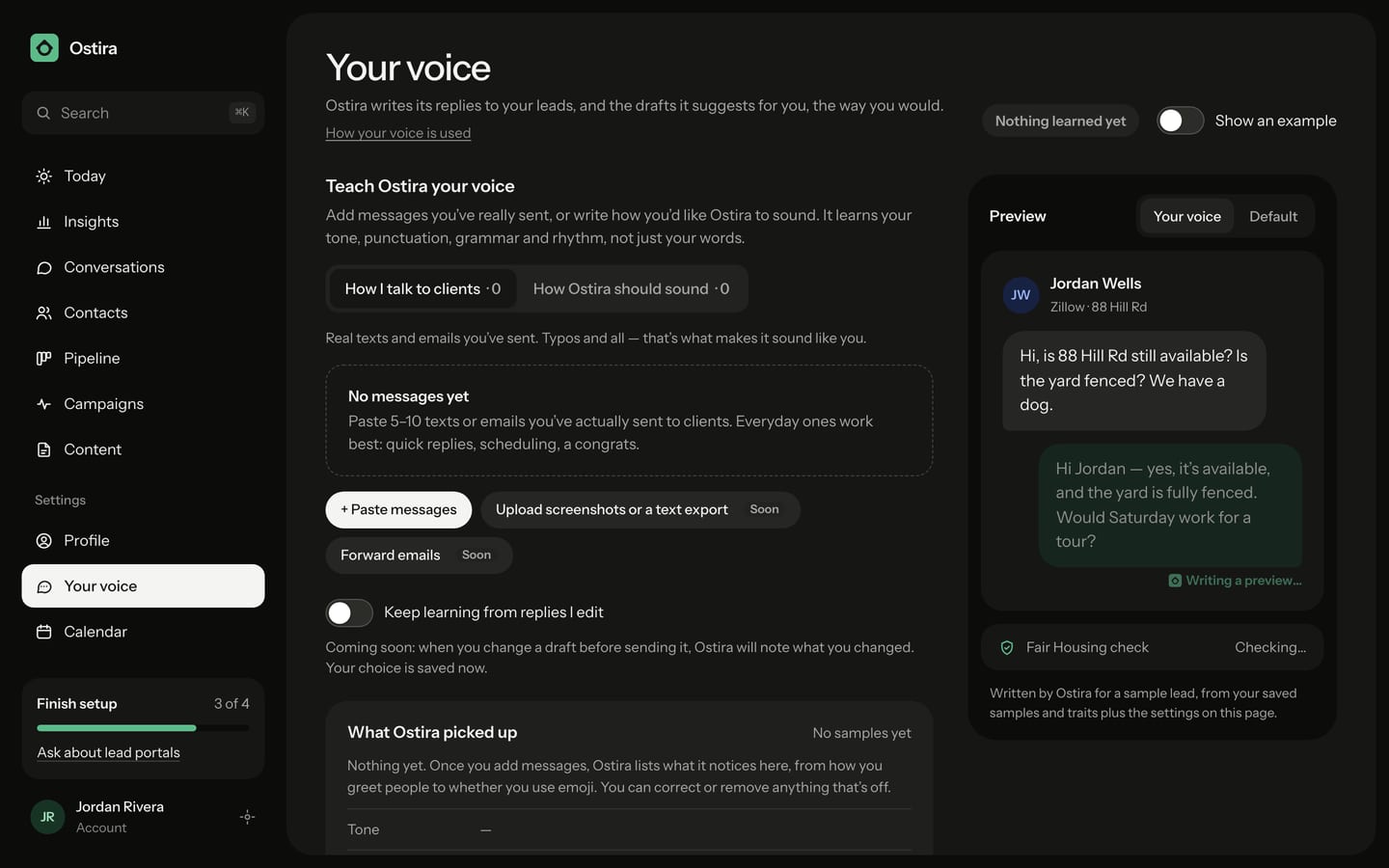
The Preview on the page shows how Ostira would answer a sample lead. Switch between Your voice and Default to compare, and see whether the reply passes the Fair Housing check.
What happens next
Ostira uses your saved voice from its next reply. If a never-say phrase slips into a reply or draft, Ostira rewrites it or removes it.
Your voice changes how Ostira sounds, not its rules. If a lead asks, Ostira still says it's an assistant, and every message still gets the Fair Housing check.
To see how the page works without changing anything, turn on Show an example. Nothing in the example is saved. The Keep learning from replies I edit switch saves your choice, but learning from your edits isn't available yet.
Related
Was this helpful?
Still stuck? Email support@ostira.com.